omg thank y'all so much for ur birthday wishes!! <333 i really appreciate it :3
Back to top button
Written by nick
14.02.2026
Table of Contents
1 Intro
Nobody likes scrolling all the way back to the top manually. It's tedious! In this tutorial, we'll create a button that stays hidden until your user has scrolled down a bit, then smoothly takes them back to the start.
Of course, a simple back-to-top button can be made entirely without JavaScript, but it would be visible all the time. Here, we'll use a little JavaScript to make it appear only when it's actually needed! <3
2 The button
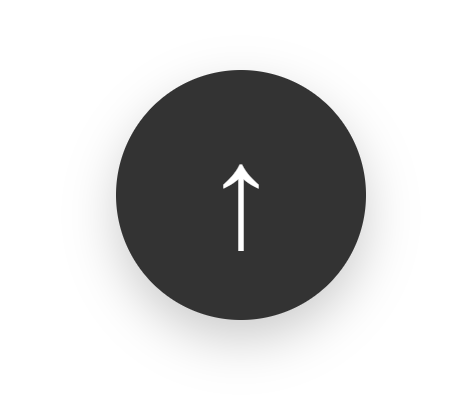
We need a simple button element. You can place this anywhere in your <body>, but I usually put it near the footer.
I'm using a simple HTML entity (↑) for the arrow here to keep things lightweight, but feel free to use a text label or an icon font if you're already loading one.
We also added an aria-label attribute. This gives the button a readable name for screen readers, since the arrow character alone isn't descriptive enough for accessibility tools.
<!-- The button is hidden by default via CSS -->
<button id="back-to-top" title="Go to top" aria-label="Back to top">↑</button>3 The CSS
We position the button at the bottom right, which is the standard thumb-zone for most users.
To make it appear and disappear smoothly, we use opacity and transition. We also set pointer-events: none when it's hidden so users don't accidentally click it while it's invisible.
<style>
  #back-to-top {
    position: fixed;
    bottom: 20px;
    right: 20px;
    width: 50px;
    height: 50px;
    border-radius: 50%;
    background-color: #333;
    color: #fff;
    border: none;
    font-size: 24px;
    cursor: pointer;
    box-shadow: 0 2px 10px rgba(0, 0, 0, 0.3);
    z-index: 1000;

    /* Animation properties */
    opacity: 0;
    pointer-events: none;
    transition: opacity 0.3s ease, transform 0.3s ease;
  }

  #back-to-top:hover {
    background-color: #555;
    transform: translateY(-3px);
  }

  /* This class will be added by JS to show the button */
  #back-to-top.visible {
    opacity: 1;
    pointer-events: auto;
  }
</style>
4 The JavaScript magic
We don't want the button sitting there while the user is already at the top, so we only want to show it after they've scrolled down a bit. That's where JavaScript comes in.
Place this at the end of your site, ideally right before the </body> tag.
We'll listen for the scroll event, check the window.scrollY position, and toggle the .visible class. Then, when clicked, we use the browser's native smooth scrolling behavior to scroll back to top!
<script>
  // Select the button element
  const backToTopButton = document.getElementById('back-to-top');

  // Toggle button visibility based on scroll position
  window.addEventListener('scroll', () => {
    if (window.scrollY > 200) {
      backToTopButton.classList.add('visible');
    } else {
      backToTopButton.classList.remove('visible');
    }
  });

  // Scroll the window to the top smoothly when clicked
  backToTopButton.addEventListener('click', () => {
    window.scrollTo({
      top: 0,
      behavior: 'smooth'
    });
  });
</script>
The value 200 in the script represents pixels. You can change this number if you want the button to appear sooner or later as the user scrolls.
5 The full code
Here is the complete snippet in case you're wondering what the code looks like when it's all put together!
<!DOCTYPE html>
<html lang="en">
<head>
<meta charset="UTF-8">
<meta name="viewport" content="width=device-width, initial-scale=1.0">
<title>Back to Top Demo</title>
<style>
body {
font-family: sans-serif;
line-height: 1.6;
background-color: #f0f0f0;
color: #333;
}
/* This class is only for this demo to force the page to scroll.
You don't need this for your actual website! */
.content {
max-width: 600px;
margin: 50px auto;
padding: 20px;
background: white;
min-height: 2000px; /* Forces scrolling */
border-radius: 8px;
}
#back-to-top {
position: fixed;
bottom: 30px;
right: 30px;
width: 50px;
height: 50px;
border-radius: 50%;
background-color: #333;
color: #fff;
border: none;
font-size: 20px;
cursor: pointer;
box-shadow: 0 4px 10px rgba(0, 0, 0, 0.2);
z-index: 1000;
/* Animation properties */
opacity: 0;
pointer-events: none;
transition: opacity 0.3s ease, transform 0.3s ease;
}
#back-to-top:hover {
background-color: #555;
transform: translateY(-5px);
}
/* This class will be added by JS to show the button */
#back-to-top.visible {
opacity: 1;
pointer-events: auto;
}
</style>
</head>
<body>
<div class="content">
<h1>Scroll down!</h1>
<p>Keep scrolling...</p>
<p>(Lots of content here)</p>
</div>
<!-- The Button -->
<button id="back-to-top" title="Go to top" aria-label="Back to top">↑</button>
<script>
// Select the button element
const backToTopButton = document.getElementById('back-to-top');
// Toggle button visibility based on scroll position
window.addEventListener('scroll', () => {
if (window.scrollY > 200) {
backToTopButton.classList.add('visible');
} else {
backToTopButton.classList.remove('visible');
}
});
// Scroll the window to the top smoothly when clicked
backToTopButton.addEventListener('click', () => {
window.scrollTo({
top: 0,
behavior: 'smooth'
});
});
</script>
</body>
</html>Aaaand you're done! Your users will thank you for saving their tired fingers. <3